
Amazon Bestseller Analysis 2026: Guide for Authors
Discover why romance is declining and thrillers dominate in 2026. Real data analysis and self-publishing strategies for success on Amazon KDP.
Leer más
Yoanys Pestana Alfonso
Co-Founder of Alavante, Editorial Design Specialist and UI/UX Designer.
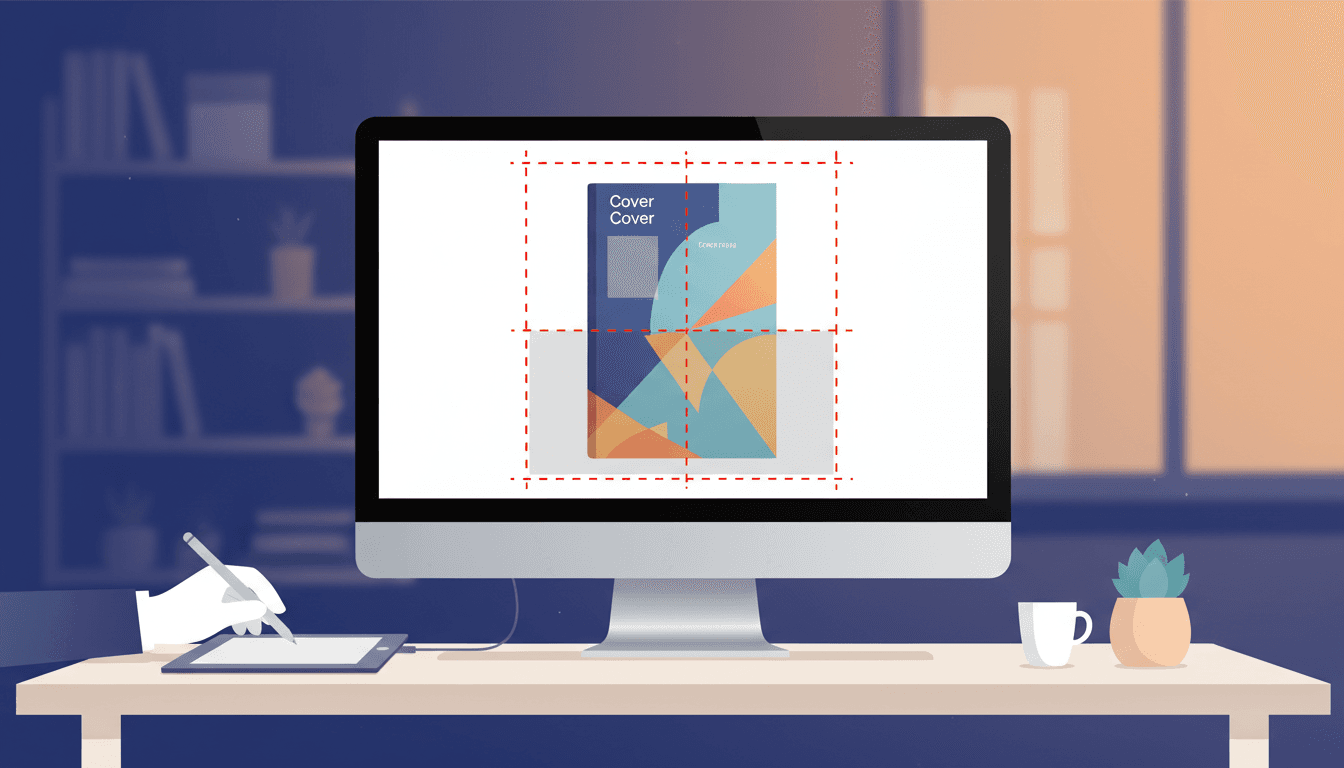
Your book is great, but Amazon will reject it if the cover is technically flawed. Master the exact dimensions and bleed to publish without errors.
Why does Amazon reject so many paperback covers? The problem usually isn't the design, but the math. A one-millimeter error on the spine or a missing bleed stops your publication in its tracks.
This isn't about art; it's a technical requirement most authors overlook. In a market where 80-90% of purchase decisions are made based on the thumbnail, a technical error knocks you out of the game before you even start.
Key Stat: In November 2025, authors in the KDP Select Global Fund earned a share of $61.6 million USD. A correct cover is the first step to getting a piece of that pie. ¹
Your focus should be on writing, not on fighting with upload errors. The key is to get the technical specifications right from the beginning.
We'll show you how to use KDP's official tools to generate a perfect template, so your only worry is writing your next book.
What exactly does Amazon's automated review check?
Amazon doesn't judge your taste in design. Its automated system reviews three critical technical aspects: overall dimensions, spine width, and bleed.
Your cover file is a single flat image that includes the front cover, back cover, and the spine. The overall dimensions must perfectly match your book's trim size (e.g., 6x9 inches), plus the spine, plus the bleed on all three outer edges.
The spine width is the most common point of failure. It depends directly on your final page count and the paper type you choose (cream or white). A 150-page book on white paper has a different spine width than the same book on cream paper. You must calculate this precisely.
Finally, the bleed is a mandatory 0.125-inch (0.3175 cm) margin of your background image or color that extends beyond the final trim lines. During printing, the machine cuts this excess off, ensuring your background extends to the very edge of the page without any white borders. ²
Forget guesswork. Follow this exact process to avoid 99% of rejection issues. The golden rule is: finalize your interior manuscript before starting the cover.
Before you can calculate your cover size, you need three final pieces of information:
This is not an optional step. Go to the KDP Cover Templates page. Input your trim size, page count, and paper color. The tool will generate the exact dimensions for your full cover spread, including the spine and bleed. ³
Download the template provided by Amazon. You can get it in PDF, PNG, and ZIP formats. This file is your blueprint. It shows you the safe zones, margins, trim lines, and spine folds.
Whether you use Canva, Affinity Designer, or Photoshop, start by placing the downloaded KDP template as the bottom layer of your design. Lock it and reduce its opacity so you can see it, but design on new layers above it.
Ensure your background image or color extends all the way to the outer edge of the bleed area (the red line in the template). Keep all important text and logos well within the white "safe zone" to avoid them being cut off during trimming. Nothing critical should be in the pink margin areas.
Your design software must be set up correctly for print. Before exporting, verify these settings:
You don't need expensive software to create a technically compliant cover. These tools are all you need to get started.
| Tool | Primary Use | Cost | Key Feature for KDP |
|---|---|---|---|
| KDP Cover Calculator | Dimension & Template Generation | Free | The only official source for your exact cover dimensions. Non-negotiable. |
| Canva | User-Friendly Design | Freemium | Allows custom dimensions. Enter the full width and height from the KDP calculator to create a perfect canvas. |
| GIMP | Advanced Image Editing | Free | A powerful open-source alternative to Photoshop. Gives you full control over DPI, CMYK, and layers. |
| KDP Print Previewer | Pre-Upload Validation | Free | Part of the KDP upload process. It simulates how your cover will be printed and flags most common errors. |
What are the silent killers that lead to automatic rejection?
Most rejections are automated. By avoiding these common pitfalls, you can ensure your book gets approved on the first try.
| Common Mistake | Symptom | Solution |
|---|---|---|
| Incorrect Spine Width | Your cover is rejected for wrong dimensions, or the printed spine text is off-center. | Finalize your page count first. Use the KDP Cover Calculator with the final numbers. |
| Omitting the Bleed | The uploaded file is rejected, or the printed book has ugly white slivers along the edges. | Extend your background image/color 0.125 inches (0.3175 cm) past the trim line on all three outer edges. |
| Low Resolution / RGB Color | The KDP Previewer flags a quality issue, or the printed cover looks blurry and colors are dull. | Set your design document to 300 DPI and CMYK color mode before you start designing. |
| Text in the Danger Zone | The author's name or title is partially cut off, or the barcode covers important info on the back. | Keep all text and critical elements inside the "safe zone" shown on the KDP template. Amazon places the barcode for you. |
"In every self-publishing author group, the number one tip is always the same: always, always order a physical proof copy. What you see on screen is never 100% what you get on paper."
A professional cover is more than just beautiful art; it's a technical file that must meet strict printing standards. Stop treating it as an afterthought and start with the technical requirements.
By prioritizing the math—dimensions, spine, bleed—you eliminate the friction between your creativity and Amazon's printing press. This saves you weeks of frustrating back-and-forth with KDP support.
Don't let a preventable technical error delay your launch. Use the KDP Cover Calculator today, check your file against the official template, and upload with the confidence that it will be approved the first time.
1 KDP Select Global Fund 2 Create a Paperback Cover 3 Cover Templates
Discover why romance is declining and thrillers dominate in 2026. Real data analysis and self-publishing strategies for success on Amazon KDP.
Leer más
Discover how to stop seeing your free ebook as a simple giveaway and transform it into the epicenter of a marketing ecosystem designed to gain visibility, reviews, and, above all, loyal readers who will buy your next books.
Leer más
Learn to design an Amazon KDP cover that sells. A 2025 guide with technical specs, tools, and common mistakes to avoid to stand out and boost your conversions.
Leer más