
Amazon Bestseller Analysis 2026: Guide for Authors
Discover why romance is declining and thrillers dominate in 2026. Real data analysis and self-publishing strategies for success on Amazon KDP.
Leer más
Danyer Acuña Cifre
Alavante Contributor, Market Analyst at Amazon KDP
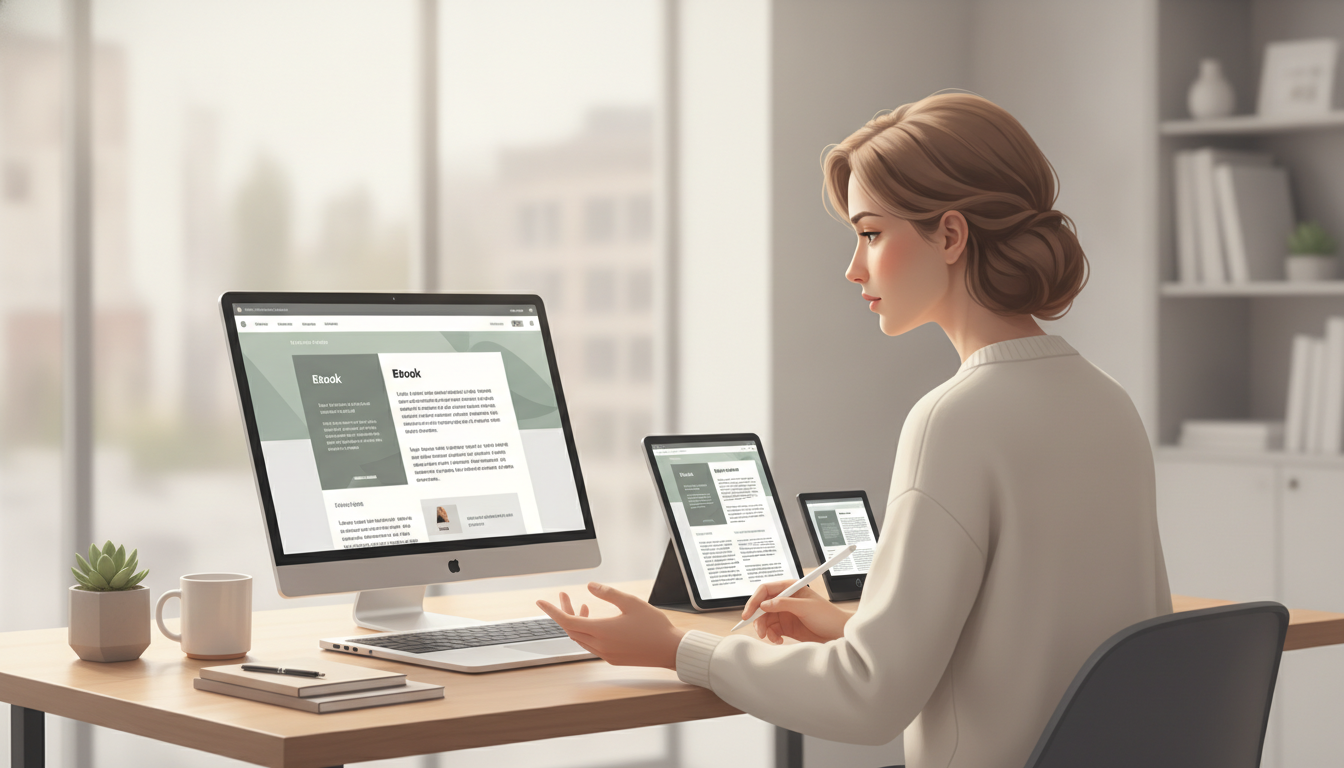
If your problem is figuring out how your book will look in Kindle App for PC and other Kindle reading environments before you publish, the practical answer is this: work from a reflowable file, prepare it in Kindle Create if you start from DOC or DOCX, and validate it in Kindle Previewer so you can see how the book changes across devices, orientations, and font sizes Source Source.
Amazon says reflowable ebooks let readers resize text and are available on all Kindle devices and free Kindle reading applications Source. That makes this process useful not for “optimizing” sales, but for avoiding layout and reading surprises before publication.
Before thinking about style, check whether your manuscript works well as a reflowable ebook. Amazon recommends using reflowable content whenever possible because it offers broad compatibility, better accessibility, and a more flexible reading experience Source.
If your book is mostly text, it is usually worth preparing a reflowable version from a DOC or DOCX file. Kindle Create converts that file into a reflowable ebook and is available for PC and Mac Source Source. This is often the most practical route when you want to see how the text behaves across different screens.
Amazon states that reflowable books let readers resize text and can be read on Kindle App and compatible Kindle devices Source. If you import a DOC or DOCX into Kindle Create, the conversion is aimed at that reflowable format Source.
Kindle Create converts DOC or DOCX manuscripts into reflowable ebooks Source. In practice, that gives you a starting point closer to the final reading experience.
Open Kindle Create and start a new project with your DOC or DOCX file. Amazon says the conversion optimizes typefaces, line spacing, margins, and indents, and that each page break in the document becomes a new section Source.
Why it matters: if the source file is already organized, it is easier to spot where text breaks awkwardly or where sections are split badly in the reading app.
Kindle Create detects possible chapter titles and uses them to build the ebook’s table of contents Source. A clear contents structure helps you confirm whether the internal navigation makes sense in both the PC app and other Kindle reading environments.
Why it matters: confusing navigation in preview often points to real reading issues, even when the prose itself is fine.
Amazon says Kindle Create does not let you edit tables, lists, or footnotes inside the tool. If you need to change them, you must do it in the source application and then copy or re-import the adjusted content Source.
Why it matters: if you do not fix those items outside Kindle Create, you may preview a version that does not accurately represent the final book.
Kindle Previewer imitates how books display on Kindle devices and applications Source. Amazon says it helps validate layout across different screen sizes, orientations, and font sizes, and lets you review images, tables, links, and lists Source.
Use Previewer as your main pre-publication check. Do not stop at a single view: test larger and smaller font sizes, portrait and landscape views, and both short and long chapters. That review helps you catch odd line breaks, misaligned elements, or hard-to-follow links.
Amazon says Kindle Previewer is the best way to validate content before publishing, and that sideloading ebooks to devices is no longer recommended for testing because it does not provide an accurate view of Enhanced Typesetting features Source.
When you open the book in Kindle App for PC, look at it like a reader, not like the author or editor.
Why it matters: the PC app helps you see whether the book depends too much on one fixed display. In a reflowable ebook, the text should still work when the reader changes the presentation.
Marina imports her manuscript without checking the table of contents or chapter breaks. In Kindle App for PC, the first chapter looks fine, but later a list ends up detached from the preceding paragraph and a link is hard to notice.
Marina goes back to the source document, fixes the list, and adjusts the headings before re-importing the file into Kindle Create. She then opens the preview in Kindle Previewer, changes the font size, and confirms the structure still reads clearly in the PC app.
What changed: she did not make the book more complicated; she just checked that the presentation stayed consistent across different screens and sizes.
Amazon recommends converting content to reflowable format whenever possible Source. For a text-heavy book, that is usually the most useful option because it adapts better to different Kindle devices and applications Source.
If your content needs a very fixed layout, Amazon mentions other formats, but for the purpose of checking how a normal ebook will appear in Kindle App for PC, reflowable is the most practical starting point Source.
In short: if you want to check your book properly in Kindle App for PC, do not just open it once. Use Kindle Create to prepare the reflowable version and Kindle Previewer to validate how the text behaves on different screens. That gives you a more reliable base before publishing Source Source.
Discover why romance is declining and thrillers dominate in 2026. Real data analysis and self-publishing strategies for success on Amazon KDP.
Leer más
Discover how to stop seeing your free ebook as a simple giveaway and transform it into the epicenter of a marketing ecosystem designed to gain visibility, reviews, and, above all, loyal readers who will buy your next books.
Leer más
Learn to design an Amazon KDP cover that sells. A 2025 guide with technical specs, tools, and common mistakes to avoid to stand out and boost your conversions.
Leer más